
Download LICEcap – Free GIF Creator for Mac, Windows, and Linux
Overview
LICEcap is a lightweight, free multimedia tool that makes the creation of animated GIFs from screen captures a breeze. Designed with a clean, intuitive interface, LICEcap allows Mac, Windows, and Linux users to record any portion of their screen, fine‑tune frame rates, and export the result as a high‑quality GIF in seconds. Whether you need a quick visual demo for a software tutorial, a snappy animation for a social‑media post, or a compact visual aid for a business presentation, LICEcap delivers a seamless workflow that eliminates the need for complex video‑editing suites.
The application’s core strength lies in its simplicity: select a region, hit “Record,” set the desired duration or frame count, and let LICEcap handle the rest. All captured frames are automatically stitched together, producing a smooth looping animation ready for immediate sharing. Because it is completely free, open‑source, and regularly updated, LICEcap has become a go‑to solution for creators who value speed, security, and flexibility without sacrificing quality.
Key Features and Functionalities
- Region‑Based Recording: Choose any rectangular area of your screen, from a full‑desktop view to a precise 100 × 100‑pixel box, ensuring that only the relevant content is captured.
- Customizable Frame Rate: Adjust the frames‑per‑second (FPS) setting from 1 FPS up to 60 FPS, giving you control over smoothness and file size.
- Duration & Frame Count Control: Set a maximum recording time or a specific number of frames, which is ideal for creating concise GIFs that stay under size limits for email or web upload.
- Instant Preview: While recording, LICEcap displays a live preview window so you can monitor the capture in real time and stop when the content is perfect.
- One‑Click Export: Save directly to GIF with a single click; the tool automatically optimizes colors and compresses the file without noticeable quality loss.
- Cross‑Platform Support: Native builds are available for macOS, Windows, and Linux, making LICEcap a versatile choice for mixed‑environment teams.
- Free & Open Source: No hidden fees, no subscription, and a transparent codebase that encourages community contributions and security audits.
- Lightweight Installation: The installer is under 5 MB, and the application runs with minimal RAM and CPU usage, preserving system performance during recordings.
Each feature is designed with a specific user scenario in mind. For example, the region‑based recording helps developers capture a short snippet of a bug without exposing unrelated UI elements, while the customizable frame rate is perfect for animators who need a smooth motion for tutorial walkthroughs. The instant preview and one‑click export workflow dramatically reduce the time from concept to shareable GIF, allowing content creators to stay focused on storytelling rather than fiddling with technical settings. Moreover, the open‑source nature ensures that any security‑concern or feature request can be addressed by the community, keeping LICEcap up‑to‑date with modern operating‑system changes.
Installation, Setup, and Everyday Usage
Step‑by‑Step Installation
- Visit the official LICEcap website or the trusted repository for your operating system.
- Download the installer that matches your platform (e.g.,
LICEcap‑mac.dmg,LICEcap‑win.exe,LICEcap‑linux.tar.gz). - Run the installer and follow the on‑screen prompts. On macOS, drag the LICEcap icon to the Applications folder; on Windows, accept the license agreement and click “Install.”
- After installation, launch LICEcap from your Start menu, Applications folder, or terminal (for Linux users).
First‑Time Configuration
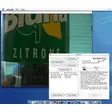
When you open LICEcap for the first time, you’ll see a small window with a rectangular overlay. This overlay defines the capture area. You can resize it by dragging the corners or entering exact pixel dimensions in the “Size” fields.
The default FPS is set to 10, which balances smooth motion and file size for most everyday tasks. Adjust the FPS slider if you need slower or faster playback. The “Duration” field lets you cap the recording length; leave it blank for an unlimited session that you stop manually.
Recording a GIF
To start recording, simply click the red “Record” button. LICEcap will begin capturing each frame within the defined region. A tiny timer appears in the corner, showing elapsed time and frame count. If you need to pause, press the “Pause” button; you can resume later without losing already captured frames. When you’re satisfied, click “Stop.” LICEcap instantly opens a “Save As” dialog; choose a destination folder, give your GIF a descriptive name, and click “Save.” The file is ready for immediate sharing via email, Slack, or any social platform.
Advanced Tips for Power Users
- Keyboard Shortcuts: Press Ctrl + R (Windows/Linux) or Cmd + R (macOS) to start/stop recording without clicking the button.
- Batch Export: Record multiple short clips and use a free GIF‑combining tool to merge them into a single animation.
- Color Palette Reduction: After export, run the GIF through an optimizer like Gifsicle to reduce colors and shrink file size for email attachments.
The overall workflow is intentionally streamlined: from download to shareable GIF in under a minute. This speed makes LICEcap an ideal companion for live presentations, where you can capture a live demo, edit a quick annotation, and embed the resulting animation directly into your slide deck without leaving the application.
Compatibility, Pros & Cons
LICEcap offers native builds for macOS 10.10 and later, Windows 7 through 11 (both 32‑bit and 64‑bit), and major Linux distributions (Ubuntu, Fedora, Arch) via compiled binaries or package managers. The application runs smoothly on both Intel and Apple Silicon Macs, thanks to a universal binary that automatically selects the optimal architecture.
Pros
- Completely free with no hidden charges or trial limitations.
- Lightweight footprint – uses under 30 MB of RAM while recording.
- Instant preview and one‑click export streamline the creation process.
- Cross‑platform availability ensures consistency across teams.
- Open‑source code promotes transparency and rapid bug fixes.
- Customizable frame rate and duration give fine‑grained control over output size.
Cons
- Lacks built‑in advanced editing tools (e.g., text overlay, cropping after capture).
- No native support for exporting to video formats like MP4.
- The user interface, while functional, feels dated compared to modern design trends.
- Audio capture is not supported – only visual frames are recorded.
Frequently Asked Questions
Is LICEcap truly free for commercial use?
Yes. LICEcap is released under the MIT license, which permits unlimited personal, educational, and commercial usage without any fees or attribution requirements.
Can I record my entire screen, not just a region?
Absolutely. Drag the capture rectangle to cover the whole display, or click the “Full Screen” button (available on Windows and macOS) to automatically select the maximum area.
What is the maximum file size LICEcap can export?
There is no hard‑coded limit, but the final GIF size depends on frame count, resolution, and color depth. For large recordings, consider lowering the FPS or reducing the capture area to keep the file under typical email attachment limits (≈ 10 MB).
Does LICEcap support Apple Silicon natively?
Yes. The macOS bundle includes a universal binary that runs natively on both Intel and Apple Silicon processors, delivering optimal performance on M1/M2 Macs.
Can I add text or annotations after recording?
LICEcap does not include post‑recording annotation tools. However, you can open the exported GIF in a free editor like GIMP or an online GIF editor to add captions, arrows, or other graphics.
Conclusion & Call to Action
LICEcap stands out as a fast, secure, and completely free solution for anyone who needs to turn screen activity into animated GIFs. Its straightforward interface, cross‑platform compatibility, and low system overhead make it an ideal tool for developers, educators, marketers, and casual users alike. While it does not replace full‑featured video editors, its focus on quick capture and export fills a niche that many larger applications overlook. If you’re looking for a reliable way to create GIFs without paying for premium software or wrestling with complex settings, LICEcap is the answer.
Ready to start creating? Download LICEcap now and experience the fastest way to generate high‑quality GIFs on your Mac, Windows PC, or Linux workstation. Join the growing community of creators who trust LICEcap for everyday screen capture tasks.